
Photopea
A browser-based Photoshop stand-in you can open anytime—edit images and PSDs with no install. Online photo and graphics editor with layers and masks; files stay on your device.
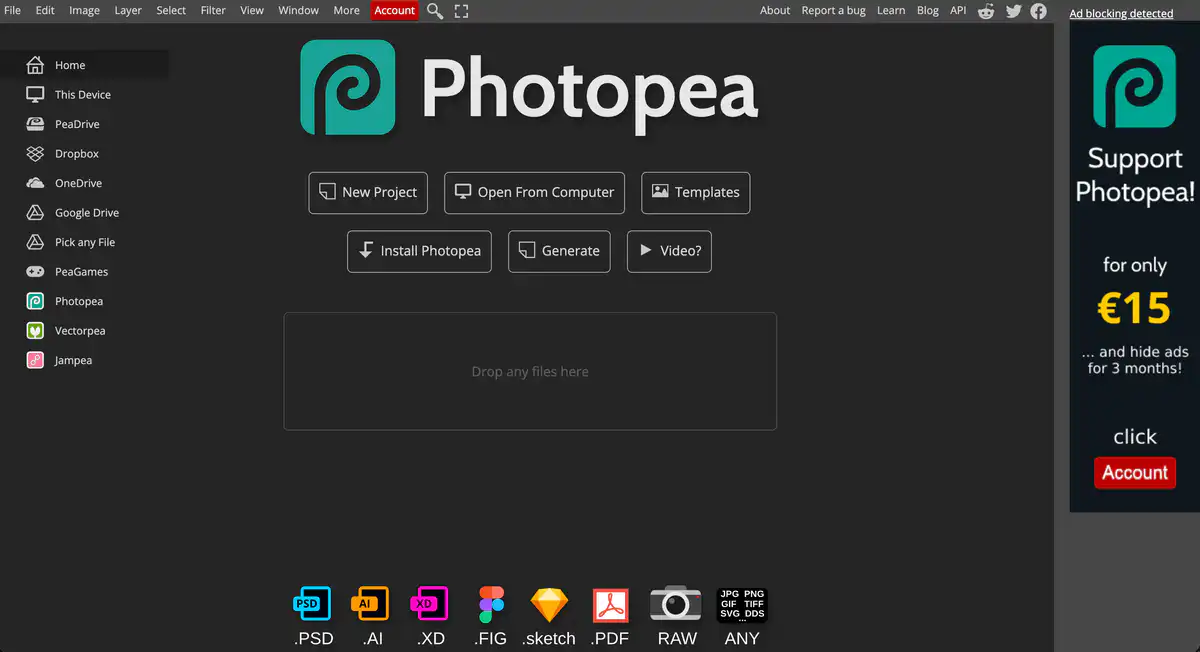
Site Overview
Photopea is a free online image editor that runs directly in your browser.
The interface is very similar to Photoshop, and it can open and save PSD files. For everyday retouching, opening client PSDs, and simple design work, it is generally sufficient.
Core Features
1. Professional-grade online retouching (close to a web-based Photoshop)
Layers, masks, Smart Objects, adjustment layers, and paths are all available.
Curves, Levels, Gaussian Blur, Liquify, and Warp filters can also be used.
It works well as a free online Photoshop or a Photoshop alternative to get by for now.
2. Handles a wide range of formats, with PSD as a strong point
It has full PSD support for opening and saving.
It also covers PNG, JPG, WebP, SVG, PDF, AI, TIFF, HEIC, and more than 40 other formats.
It can open RAW files from many cameras, such as CR2, NEF, and ARW, and adjust exposure, contrast, highlights, and shadows.
3. AI retouching: one-click cutout + text-based image replacement
It supports AI background removal / online cutout.
You can also replace parts of an image using text descriptions, such as Magic Replace.
Some AI capabilities and usage quotas are tied to your account and Premium plan, so actual availability depends on what is currently offered on the site.
4. Runs locally, works across devices, and can be used offline
Editing runs on your own CPU/GPU, and by default files do not leave your device.
As long as you have a browser on a desktop, tablet, or phone, you can use it as an online image editor.
Pricing
- Free to use: Core retouching features are available, and the free version usually includes ads.
- Premium membership: About $5 USD/month.
Pricing may change. Please refer to the website: https://www.photopea.com/ (after logging in, check Account; Premium introduction: https://blog.photopea.com/photopea-premium.html)
Comparison with Similar Platforms
Unique Advantages
- Works right in the browser, with no need to install Adobe software. You can open PSDs on school lab computers or temporary machines.
- Primarily local processing, which offers better privacy, making it suitable as a temporary online Photoshop.
- Full layer editing tools are available for free, not just lightweight tools that only crop or add watermarks.
Practical Highlights
- Shortcuts and panel layout are close to Photoshop, so people familiar with PS can pick it up quickly.
- One editor covers both raster and vector work, and can also open RAW, PDF, AI, and other common design files.
Objective Limitations
- The free version has sidebar ads, and browser performance with large files depends on hardware, so it is less stable than desktop Photoshop.
- The plugin ecosystem, depth of Camera Raw support, and some high-end commercial workflows are still weaker than Adobe Photoshop.
| Comparison Item | Photopea | Adobe Photoshop | Pixlr |
|---|---|---|---|
| Usage Method | Browser-based online | Mainly desktop software | Browser-based online |
| Price Threshold | Free to use; Premium about $5/month | Subscription-based, higher unit price | Free and paid tiers |
| PSD Compatibility | Strong open/save support | Native and strongest | Relatively limited |
| Suitable For | Students, freelancers, opening files temporarily | Professional photography/commercial teams | Lightweight retouching, social media |
FAQ
Q1: Is Photopea really completely free?
A: Core retouching features can be used for free, usually with ads. If you want to remove ads, increase cloud storage, and get more AI quota, then consider Premium.
Q2: Can it be used as a Photoshop replacement?
A: For everyday layers, masks, filters, and opening PSDs, it is very capable. For very large projects, plugin ecosystems, and top-tier RAW work, Photoshop is still more stable.
Q3: Will my images be uploaded to the cloud? Is my privacy safe?
A: The official explanation is that processing is done locally, and files do not leave your device by default. Files are only uploaded if you actively save them to PeaDrive or cloud storage.
Q4: Can I use it on school computers without installing software?
A: Yes. As long as there is a modern browser, it can be used as a free online retouching tool. It is commonly used this way on Chromebooks and public computers.
Q5: Are Magic Replace and AI cutout free?
A: The site has AI-related capabilities. Generative or quota-based features lean more toward Premium and may have monthly usage limits. Please refer to your account panel for details.
Q6: Is it easy to use on mobile?
A: It can open files, but for detailed layer editing and pen paths, a larger screen with a mouse or stylus is recommended. Mobile is more suitable for simple cropping and light edits.
Q7: How is it different from Canva, Meitu, and similar tools?
A: Photopea is more of a “serious layer editor / online Photoshop,” not a template poster factory. If you need precise layer control and need to open client PSDs, it is a better fit.