
WeChat File Transfer Helper
Dreading public WeChat logins at a print shop? Scan once on the web—no kicking your PC WeChat offline. Official WeChat File Transfer Helper (web): no install, phone↔PC file sharing.
Site Introduction
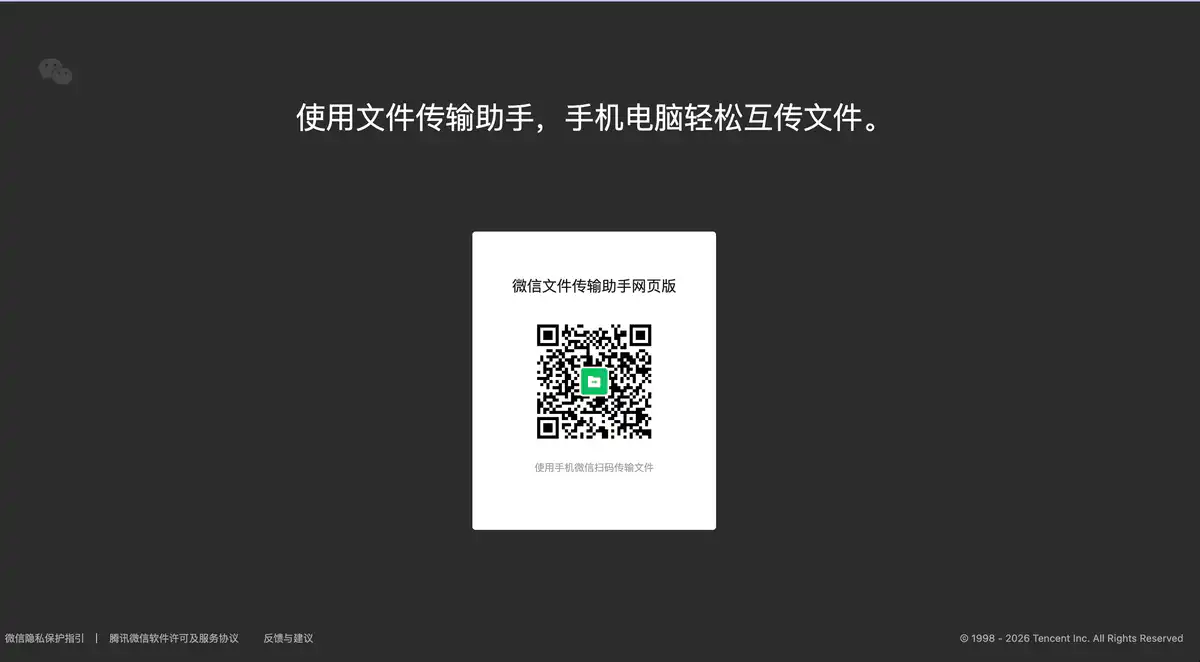
WeChat File Transfer Assistant Web Version is a lightweight tool officially launched by Tencent WeChat. By scanning a QR code in a computer browser, you can transfer files between your phone and computer.
Using it in an internet cafe, on a shared office computer, or temporarily borrowing someone else's computer to transfer a document is much more convenient than logging into the full version of WeChat.
Core Features
1. QR Code Login, Pure File Transfer
Open the official website in a computer browser, and a QR code appears on the page. Scan it with WeChat on your phone to authorize.
After logging in, you only see the File Transfer Assistant conversation window. It does not sync your friend list or display chat history. When using it in public places, you don't have to worry about people nearby glimpsing your chat content.
2. Two-Way Transfer Between Phone and Computer
Computer to Phone: Drag files into the web window, or click the button to select files. They will appear in "File Transfer Assistant" on your phone.
Phone to Computer: Send files to File Transfer Assistant from your phone, then click the file name on the web page to download it locally. Batch file selection is supported, and you can hold Ctrl to select multiple files and drag them in together.
3. Does Not Take Up a WeChat Multi-Device Login Slot
WeChat's normal rule is one phone, one tablet, and one computer at a time. Logging in on a second computer will kick out the first one.
The web version of File Transfer Assistant does not count toward this limit. You can keep the PC client logged in normally and simultaneously use the web version to transfer files without conflict.
4. Use and Leave, Independent Session
Close the browser tab and the web session ends. No login state remains on the computer.
The WeChat PC login screen also has a "Transfer Files Only" button, which leads to the same web version. The entry point is different, but the function is identical.
Pricing Model
Completely free, with no membership or paid plans.
This is an official WeChat feature and does not charge fees. There are also no VIP acceleration or storage expansion schemes. There are rules limiting file size and storage duration (see the FAQ below), but the service itself costs nothing.
Pricing may change. Please refer to the website: https://filehelper.weixin.qq.com/
Comparison with Similar Platforms
Unique Advantages
- Officially produced, with QR code login, providing better account security than third-party quick transfer tools.
- Only transfers files without exposing chats, offering stronger privacy protection than logging into the full version of WeChat.
- No installation required, only a browser is needed, making it faster than installing the PC client in temporary scenarios.
Practical Highlights
- Does not occupy a multi-device login slot and can be used simultaneously with the WeChat PC client.
- Transfer speed is good on local networks, and some scenarios support resumable transfers.
Objective Shortcomings
- Only supports computer browsers. Opening it in a phone or tablet browser usually shows that it cannot be used.
- Some users may encounter a "temporarily unavailable" message or browser compatibility warning when accessing the main site and may need to switch to Chrome/Edge or try a backup domain.
- The single-file size limit and storage duration are not as good as the WeChat PC client, which supports larger files and longer retention.
Comparison with Similar Tools
| Comparison Item | WeChat File Transfer Assistant Web Version | WeChat PC Client | AirDrop / Quick Transfer |
|---|---|---|---|
| Free or Not | Free | Free | Free |
| Installation | No installation required | Client installation required | Requires same-ecosystem devices |
| Single File Limit | Commonly 1GB | Larger (up to several GB) | Depends on system |
| Privacy | File interface only | Full WeChat | Files only |
| Login Slot Occupied | Not occupied | Occupies PC slot | Not applicable |
| Cross-Platform | Any computer browser + WeChat | Win / Mac | Apple / Android ecosystem |
| Special Features | Lightweight, temporary, no install | Full features, large files | Extremely fast on LAN |
FAQ
1. Is the web version really free?
Yes, it is an official Tencent feature and is free throughout. Make sure to check that the domain is weixin.qq.com and avoid fake links.
2. How do I log in?
Visit filehelper.weixin.qq.com in a computer browser, use WeChat on your phone to scan the QR code on the page, and confirm authorization. You can also click "Transfer Files Only" on the WeChat PC login screen to jump to the web version.
3. What should I do if it won't open or says "temporarily unavailable"?
Switch to a modern browser such as Chrome or Edge. Access may be restricted in some regions or network environments. You can change your DNS or use the WeChat PC client to transfer files directly.
4. What is the maximum size for a single file?
When WeChat promotes the web version, the commonly stated limit is 1GB per file. The actual limit may vary depending on the browser and network environment. For very large files, it is recommended to use the PC client, which has a higher limit.
5. How long are files kept?
Files transferred through the web version are kept on the server for about 7 days by default. After that, they may no longer be downloadable. Save important files locally in time after receiving them, or back them up using WeChat's "Favorites" feature.
6. Why has my phone received a large file, but it has not finished downloading on the computer?
For large files, you sometimes need to tap "Receive File" on the phone for the official download to begin. Check after the transfer so you don't find out after expiration that the file was not saved locally.
7. Compared with the full WeChat PC client, when should I use the web version?
Use the web version for temporary file transfers, shared computers, and situations where you don't want to expose chat history. Use the PC client for daily work, transferring large files, and chatting.